Download
Documents can be downloaded in several ways:
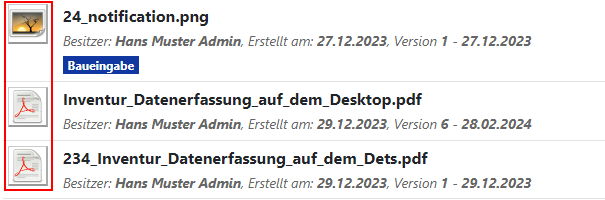
Direct download from the content list
Individual documents can be downloaded directly by clicking on the file type icon in the folder contents list.
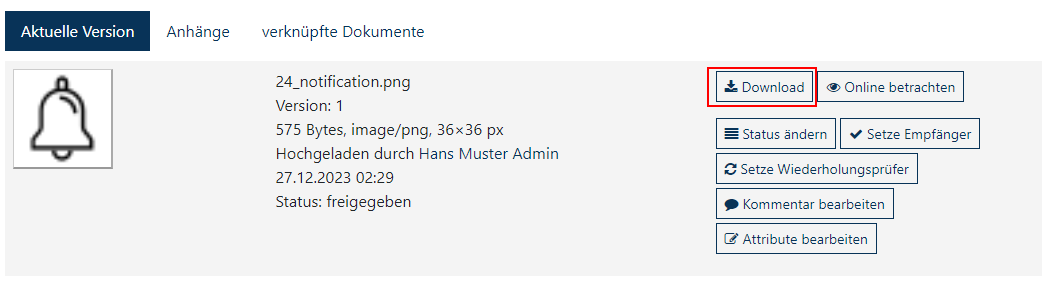
Download via document details
Another option is to access the detailed view of the document. To do this, click on the "Download" button located in the document details.
Using the download box
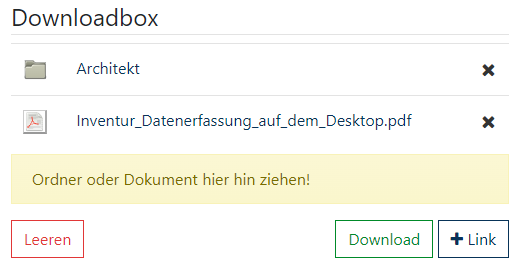
- The third option is to move files and folders into the download box and then download them as a ZIP file with just one click. This method also includes the use of the QR code function, which is used for version control in the same way as plotting jobs.
Additionally, you can have the download link sent to you by email. This is particularly convenient because you do not have to wait for the ZIP file to be prepared. The download link will be sent to you by email as soon as it is available.
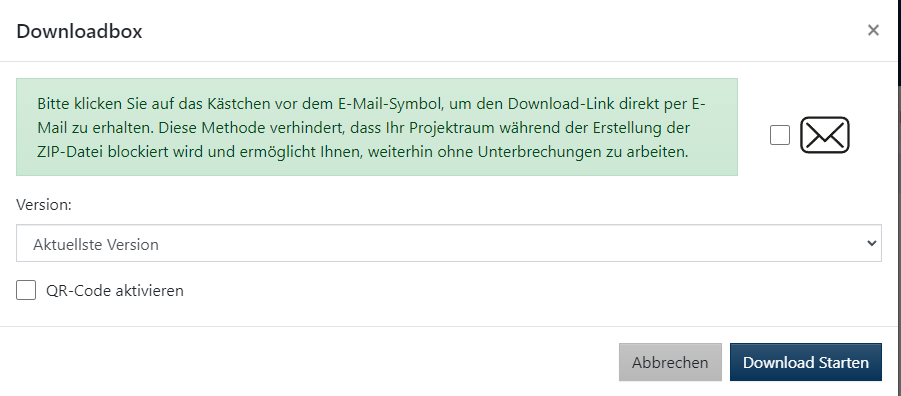
In the download box dialog box, you have various options available to customize the download of your documents according to your needs:
Sending the download link by email
- You can receive the download link via email. Simply activate this option by clicking in the corresponding selection box. This allows you to receive the link without having to wait for the ZIP file to be completed.
Version selection
- Under "Version" you have the option to choose whether you want to download only the most recent version of the documents or all available versions. This gives you flexibility in terms of the amount of data downloaded.
QR code settings
- When you select the QR code option, your project's default QR code settings are loaded. You can optionally adjust these settings in the dialog box to configure the QR code to meet your specific needs.