Project administration
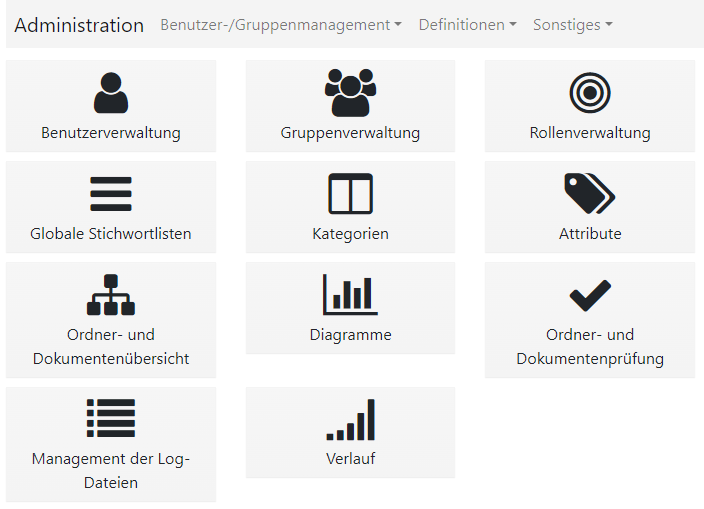
User management
In the user management you will find all project participants who have access to the file platform. Using the list selection on the left side you can select a user and change their name or user roles.
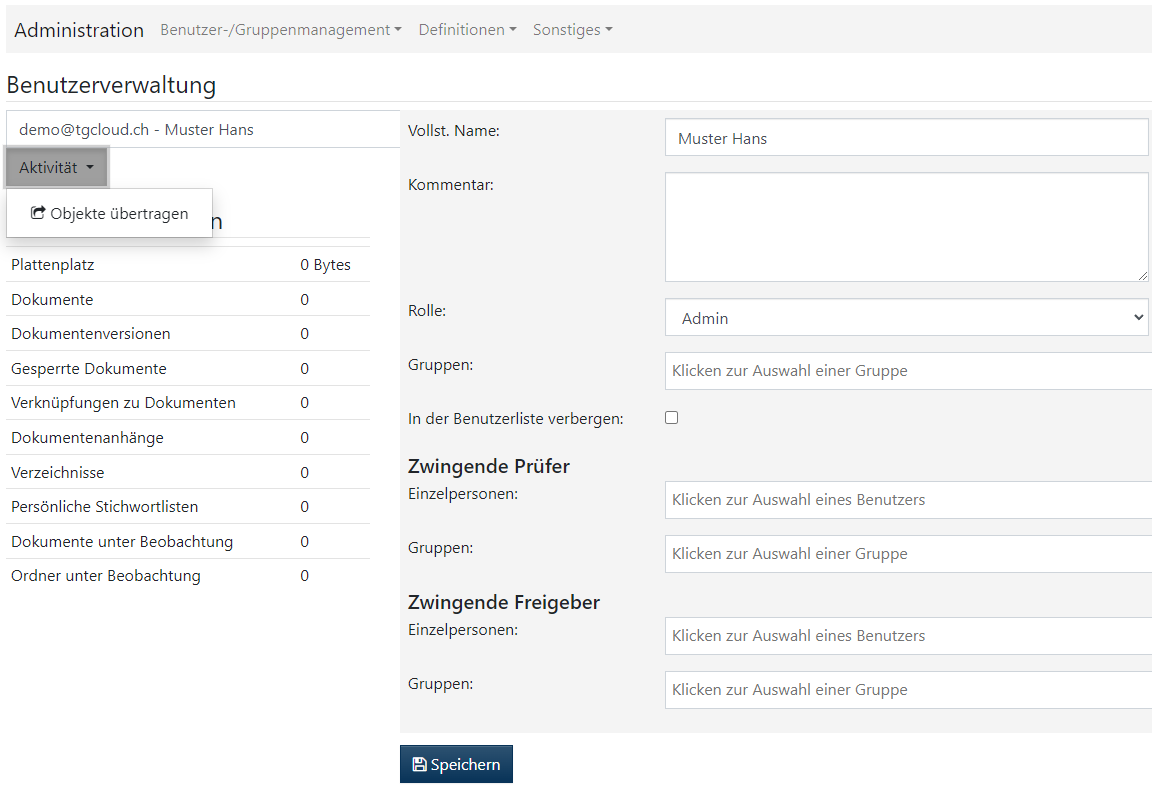
User roles and group membership: You have the option of placing a user in multiple groups at the same time. Additionally, people can be defined as "Mandatory Reviewers" or "Mandatory Approver" to control certain approval processes.
Data security and visibility: Project participants are never completely deleted from the file platform in order to preserve the integrity of documents or folders that may be associated with that person. Instead, they are made invisible to other users and are not displayed in selection menus, such as when setting permissions for documents.
Transfer of documents and folders: It is possible to transfer the ownership of documents and folders. After such a transfer, the name of the new owner will be displayed in the file platform.
Group management
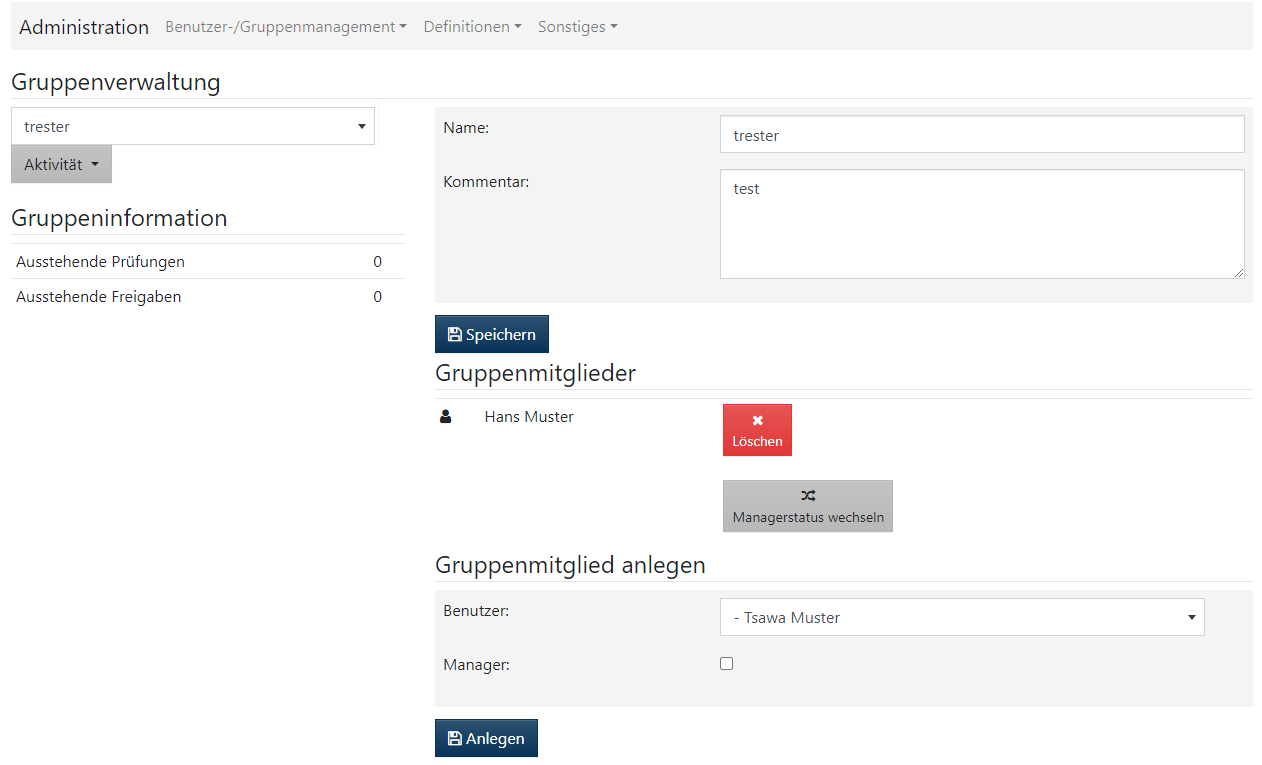
Create groups and add group members.
Role management
By default, there are three types of users on our platform: Administrator, User and Guest. Each of these roles is equipped with specific permissions to enable different functions and access levels. For more details on the respective permission functions, see the Access Control section below.
- The list view displays all project participants, sorted by their associated role.
- You can use this view to quickly see what permissions individual participants have.
- This organized representation helps in the efficient management and assignment of tasks within the project.
Access control
Access control on our platform is divided into two main components: Controllers and Views.
- Controllers: This component acts as an executive function in the background.
- Views: This component enables visibility and interaction with the feature in the file platform user interface.
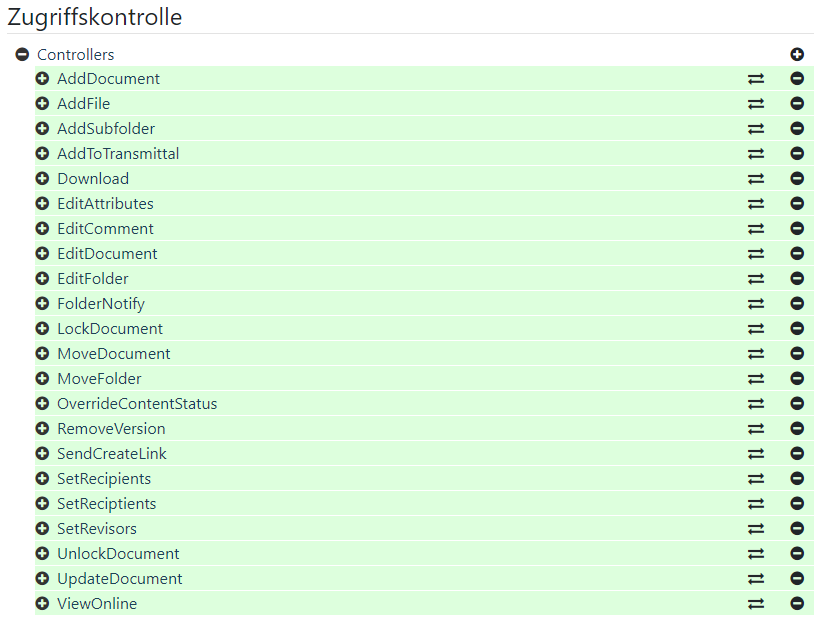
Status indicators and interaction:
- Shown in green: A function is active and released to users.
- Shown in red: A feature is disabled and cannot be viewed or executed by users.
Enabling/disabling features:
- To enable or disable a feature, click on the plus symbol to the right of the feature name. After clicking, the symbol turns red.
- To activate the function, click on the two arrows next to the plus symbol.
Default settings: The default settings for access controls are already optimally configured for most project rooms and usually do not require any further adjustment.
List:
| Controller | |
| AddDocument | Add documents |
| AddFile | Add file attachments |
| AddSubfolder | Folder - Create subfolders |
| AddToTransmittal | Add to clipboard |
| Download | Download documents |
| EditAttributes | Change attributes |
| EditComment | Edit comments |
| EditDocument | Change document details |
| EditFolder | Change folder (rename) |
| FolderNotify | Define folder notification |
| LockDockument | Lock documents |
| MoveDocument | Move documents |
| MoveFolder | Move folder |
| OverrideContentStatus | Status change |
| RemoveVersion | Delete document versions |
| SendCreateLink | Send download invitation (NOT ACTIVE) |
| SetRecipients | Email notification for documents when uploading |
| SetRevisors | Email notification for document reviewers |
| UnlockDocument | Unlock document |
| UpdateDocument | Update documents (versioning) |
| ViewOnline | View documents online |
| Views (just an addition) | |
| ACL | Set permissions |
| AddDocumentLink | Add document links |
| AdminTools | Project administration (Recommendation: Please deactivate) |
| AttributeMgr | Manage attributes |
| Categories | Manage categories |
| Charts | Obsolete (NOT ACTIVE) |
| ClearCache | Clear cache e.g. thumbnails |
| Dashboard | Document events displayed in a timeline |
| DefaultKeywords | Standard Keywords |
| Indexers | Obsolete (NOT ACTIVE) |
| MyAccount | My profile |
| MyDocuments | List view of all my documents |
Categories