Send download link
Generation and sending of a download link
In the download box you have the option to generate a download link and send it to recipients. This is particularly useful if you want to share files with people who do not have direct access to the platform.
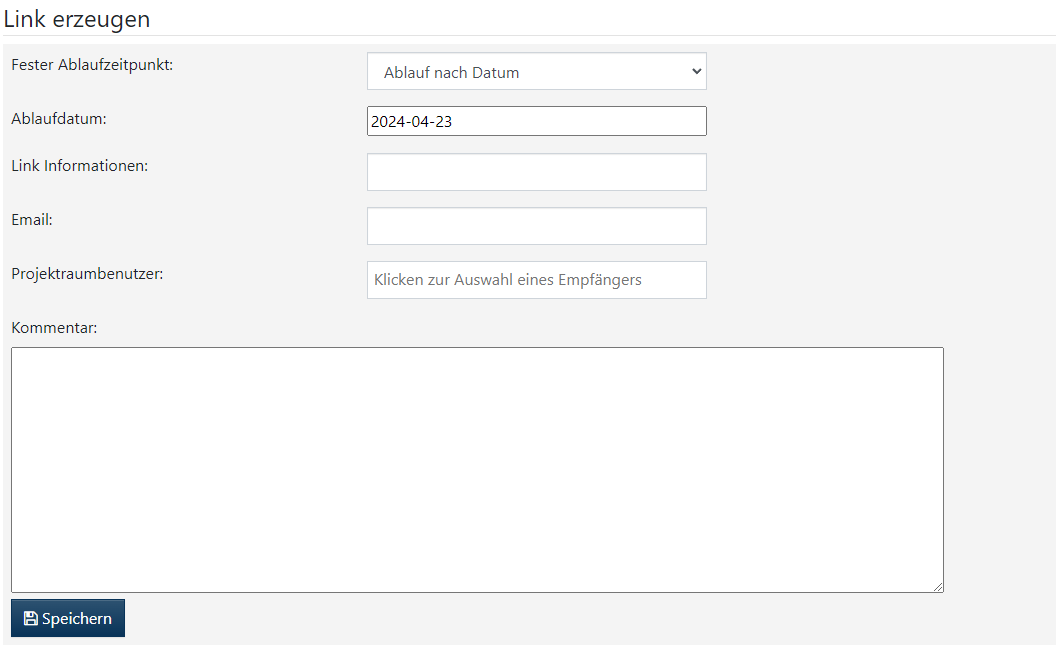
- Create link:
- When creating the link, you can set an expiration date after which the link will no longer be accessible. This increases the security of the shared material.
- Define link information:
- Under “Link Information” you can give the link a title that will help you quickly identify it later in the list of download invitations.
- Enter recipient:
- Enter the email addresses of the recipients. If there are multiple recipients, make sure to separate the addresses with a comma (e.g., hans.mueller@test.com, hans.peter@test.com).
- Alternatively, you can select project room users from a selection list if the recipients are already platform members.
- Add comment:
In the "Comment" field, you can enter a message that will be sent in the email to recipients along with the download link. This could include a short description or instructions.
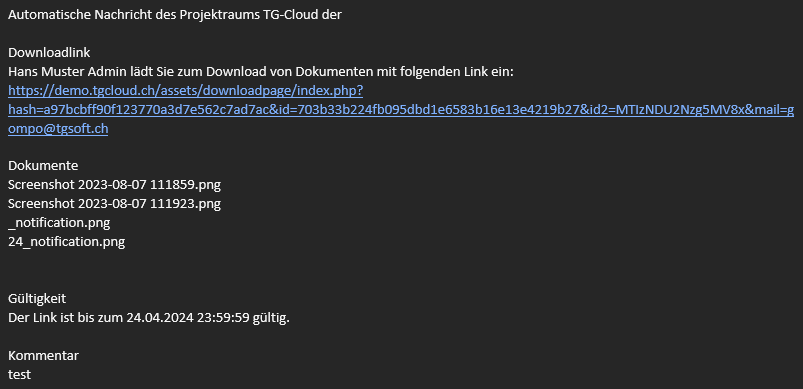
Download Link Email Example
Download invitations
The “Download Invitations” view clearly displays all the download links you have created. This view is divided into two categories: “Valid Links” and “Expired Links”.
- Valid links:
- In this group you will find all download links that have not yet expired. These links are active and can be used by the recipients to download the corresponding files.
- Expired links:
- Links that have expired are listed here. These links are no longer active and can no longer be used by recipients to access the content.
Confirmation information
| 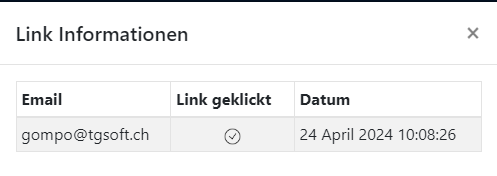 |
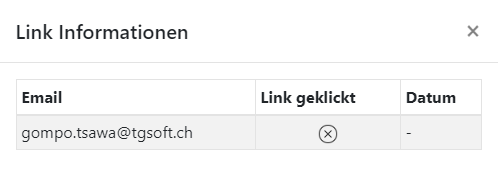
- For each link, you can view further details by clicking on a special button. This detailed view lists all recipients of the respective link.
- You can also see who has already used the link by showing which recipients have clicked on the link in the email.