authorization
The permission system in the file platform is designed to ensure the security of document management and to grant users appropriate access based on their role and responsibility. The system uses a top-down inheritance structure along with clearly defined permission levels.
Principle of inheritance
- Permissions are inherited top-down. This means that permissions set at a higher level (e.g. a folder) are automatically passed on to all elements below it, such as subfolders and files.
- This inheritance logic helps to maintain the consistency of access rights throughout the entire document structure and makes permission management much easier.
Control of inheritance
- Administrators can decide whether and how permissions are inherited. They have the option to break or adjust inheritance to meet specific security requirements at lower levels.
Authorization levels
No restriction:
- Users with this permission level have unrestricted access to the documents and can view, edit, delete and add new content.
Read Write:
- Users can view and edit documents and folders, but do not have permission to change the structure by adding new documents or folders or deleting existing ones.
Just read:
- This level allows users to view documents and folders, but prohibits any modification or addition of new content.
No access:
- Users with this setting have no access to the document or folder. They cannot view its contents or perform any actions.
Setting permissions
- Permissions are set via the administration panel, where those responsible can make the appropriate settings for each user or user group.
- It is important that permissions are regularly reviewed and adjusted to ensure that access to documents complies with current requirements and security policies.
Access rights
In the file platform, access rights management enables precise control over who can access documents and folders and how they can be managed. In the "Access rights" area you will find various configuration options:
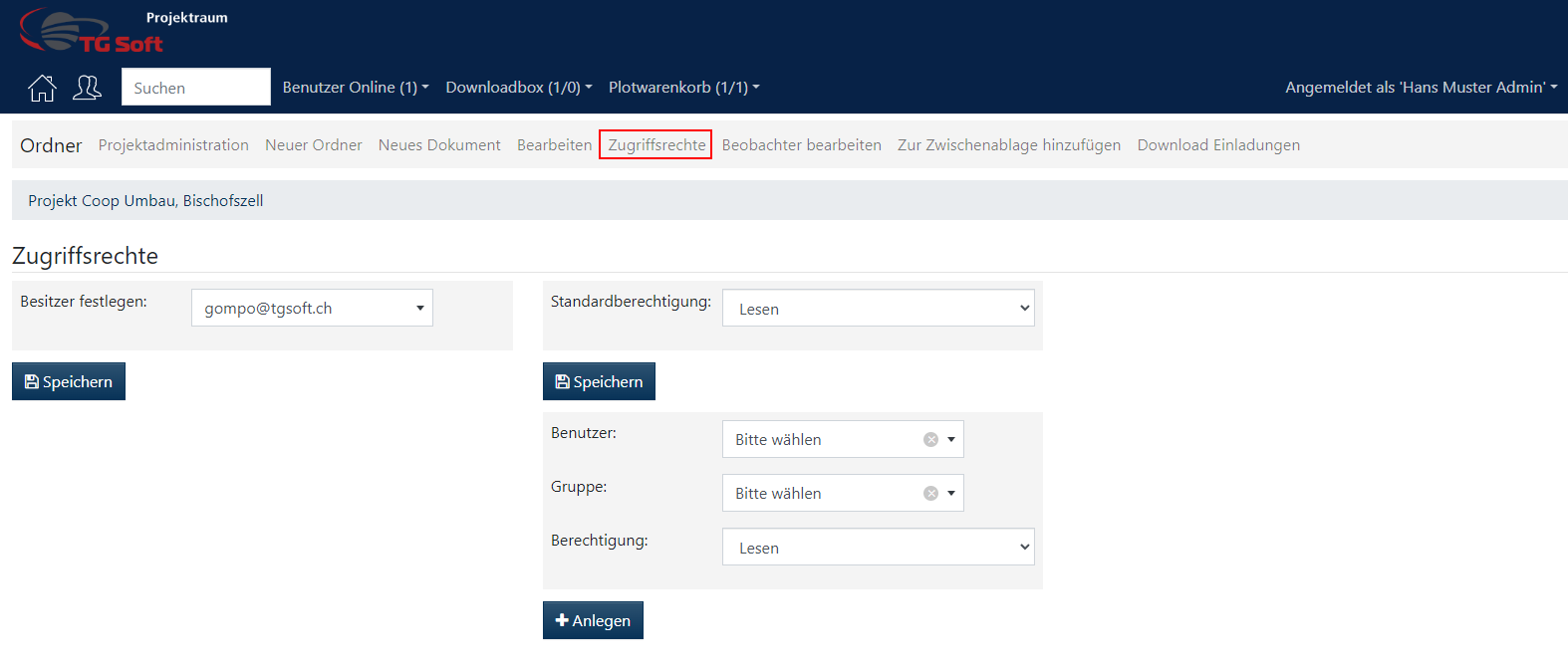
Set owner
- Purpose : The "owner" of a document or folder typically has extended control over its contents, including the ability to change access rights for other users.
- Application : The Access Rights area allows you to determine or change the owner of a document or folder. This is particularly useful when responsibilities change within a team.
- How to do it : From the list of users, select the user who will be the new owner. This user must already be a system user.
Standard authorization
- Purpose : Default permissions define the basic access rights that are automatically applied to all new subfolders and documents within a folder unless individually overridden.
- Application : This feature is useful for ensuring consistent security standards within a project area or a specific folder.
- How to do it : Set the default permissions to read, write, delete, or a combination of these actions as needed. These permissions will then be applied to all new content within the folder.
Assign authorization to individual users and groups
- Purpose : Allows you to define specific access rights for individual users or groups that differ from the default permissions.
- Application : This is useful for granting special access rights to certain users or groups, for example when a project collaborator needs special access to a document that is otherwise restricted.
- How to do it : Select the user or group from the list and set the specific permissions. You can choose whether these users can read, write, modify or delete. It is also possible to revoke permissions if requirements change.